
Install the WordPress plugin
Use the Listen Later Publisher plugin to add an audio player to public WordPress posts. You’ll need a Publisher account, administrator access to a public HTTPS site, WordPress 6.8 or later, and PHP 8.3 or later. If you’re setting up your account, follow Get started first.
Using a coding agent? Copy the WordPress setup prompt.
Download and install
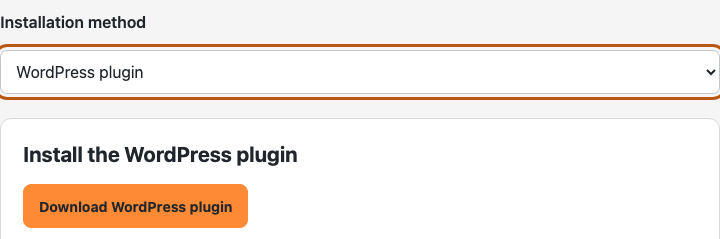
- Sign in to the Publisher dashboard and choose Add website. Enter the exact public home URL, including any subdirectory, and choose WordPress plugin as the installation method.
- Choose Download WordPress plugin. Keep the ZIP file intact for upload.
- In WordPress, open Plugins → Add Plugin → Upload Plugin. Choose the ZIP, select Install Now, and then choose Activate Plugin.
- Open Settings → Listen Later Publisher in WordPress.
Connect WordPress to Publisher
- In Publisher setup, choose Continue, then Copy connection code. The code expires after ten minutes. Choose Get a new code if it expires.
- In WordPress, paste it into Connection code and choose Verify this site. You may see Site verified. Preparing storage.
- Return to Publisher and choose Check connection. Once storage is ready, return to the plugin settings and choose Enable connection after storage is ready. Look for Website connected and verified. If storage is still preparing, wait a moment and try enabling again.
Add the player to your first post
- Choose a published post that readers can open without signing in or entering a password. Use public posts from the WordPress Posts area.
- In the plugin’s Article settings, find the post. Set Narration for this article to On and choose Save narration setting.
- Under Player placement, choose Above article or Below article, then Save placement.
- Open the public post and choose Play in the Listen to this article player. Audio may take a moment to prepare the first time someone plays or saves the post.
To show the player by default on eligible public posts, go to Automatic player, set Site narration default to On, and choose Save site default. Each post can Use site default or choose On or Off.
Replace a recording after editing a post
Publisher uses the saved post. A WordPress edit leaves the current recording in place until you request a replacement.
- Save or update the post in WordPress, then open the Listen Later Publisher panel in the editor.
- Choose Review regeneration and check the character estimate. Choose Confirm regeneration to request the new audio.
- Use Refresh status to check progress. If a failed recording is eligible for another attempt, select Review retry, then Confirm retry. If the request could not be confirmed and Retry same request appears, use it to recover the result.
The current recording stays available while the replacement prepares. Readers who already saved the episode keep the recording they saved.
Upgrade the plugin
In Publisher, open Downloads, choose WordPress plugin, and download the latest ZIP. Upload it through Plugins → Add Plugin → Upload Plugin and choose Replace current with uploaded. This keeps the connection, player placement, and post settings.
Use the Publisher dashboard guide to manage your voice, recordings, and billing. If you’re having trouble connecting or seeing the player, see Troubleshooting.