Install the website widget
Add the Listen Later player to your articles with a snippet from Publisher. You’ll need a public HTTPS site and access to edit and publish your homepage HTML and your article pages or template. If you need an account, follow Get started first.
Using a coding agent? Copy the website widget setup prompt.
Verify your website
- Sign in to the Publisher dashboard, choose Add website, and enter your public Website URL.
- Under Installation method, choose Website code and select Continue.
- Select Copy verification tag. Paste the tag into the
<head>of your homepage and publish the change. - Return to Publisher and select Verify ownership. When Publisher confirms ownership, it takes you to the player setup. The tag expires after 30 minutes. If it expires, select Get a new tag and replace the old tag on your homepage.
Install the player
- Under Player coverage, choose where to show the player.
- Only articles I choose. Add the snippet to each article you choose. Put the
<div data-listenlater-player>line where you want the player to appear, and include the script on the same page. - All eligible public articles. Add the snippet to your public article template so Publisher can place the player on eligible pages.
- Only articles I choose. Add the snippet to each article you choose. Put the
- Select Copy installation code. Paste the complete snippet into the HTML of your article or template. Use an editor or code block that preserves the
<script>tag, then publish. If someone manages your website for you, send them the snippet and tell them which pages should show the player. - Enter the public Sample article URL where you installed the snippet. Use the same website address you verified, including
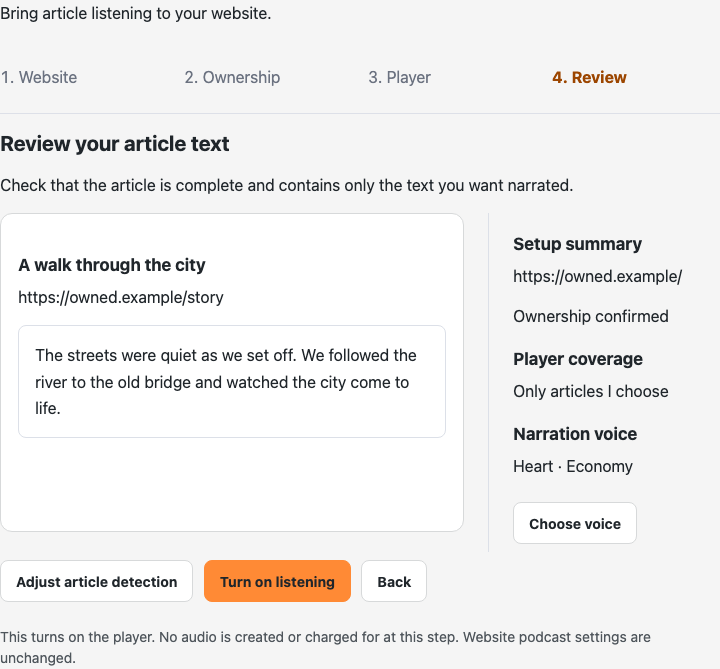
wwwif applicable. Select Check article text and read through the extracted text. - When the text is correct, select Turn on listening. Reviewing text and turning on the player are free and do not create audio.
- Open the published article and press Play. If the article has no recording yet, Publisher prepares it when you press Play.
Adjust article detection
If the review includes unrelated text or misses part of the article, select Adjust article detection and open Developer options. Use Article URL path to limit the player to a part of your site such as /blog/. For a custom layout, set an Article text selector such as .entry-content. Leave the selector blank to use automatic detection.
Select Check article text again. If Apply article settings? appears, select Apply settings and review. Check the result before turning on listening.
After setup, open your website’s Settings and enter a Sample article URL again to review your changes. When the text is correct, choose Confirm and save article settings. To change where the player appears, copy the snippet under Installation for the new coverage and update it on your site.
Manage your website in the dashboard or troubleshoot a missing player.